
How to use Inspections
From template (or no template) to a completed audit trail. Six paths into the same data shape — whichever way an inspection is captured, it ends up in Reports → Inspections with status, photos, notes and (where applicable) a checklist of answers.
1. Build a template (optional but recommended for recurring work)
- Open Workspace → Inspection Templates → New.
- Add one or more sections (e.g. "Cabin", "Brakes", "Lights").
- Inside each section, add items. Each item is a label + a question, with a fail behaviour: Fail (caution) is noted; Fail (critical) auto-flags the completion for follow-up.
- Optional: an Inspector Brief shown at the start of every run from this template.
No template? That's fine. Use Add ad-hoc inspection below for one-off records like a vendor brief or third-party audit. Templates are only required when you want a repeatable checklist.
2. Pin the template to the record
- Open the Asset or Site / Organisation record.
- Switch to the Inspections tab.
- Click Link inspection template → pick a template.
- Optionally set Recurring every N days. Leave blank for ad-hoc / on-demand use.
inspections_asset_tab.pnginspections_org_tab.png3. Run from the asset / site tab (recommended)
- On the Inspections tab, click Run on a pinned row.
- Mark each item Pass / Fail (caution) / Fail (critical) / N/A.
- Add comments per item and an overall completion note. Submit.
- FlecBase creates an Inspection entity, links it to the record, writes the completion, stamps the link's last-completed date so the recurring clock resets, and opens the completion page for photos + PDF export.
inspections_run_modal.png4. Add an ad-hoc inspection (no template)
For one-off cases — a third-party vendor visit, a manual condition note, an external audit. Just create the record and attach what you have.
- On the Asset or Site's Inspections tab, click Add ad-hoc inspection.
- Set the inspection name (e.g. "Annual fire-system audit — Vendor X"), an optional description / brief summary, and the date it happened.
- Submit. FlecBase creates the Inspection entity (status Draft), links it to the record via the right relationship, and opens the entity edit page.
- On the entity page, attach the vendor PDF as a File, write follow-up Notes, set status to Open / In Progress as the workflow continues, mark Complete when closed out.
5. Run on the mobile app
- Field worker opens the FlecBase app, picks the asset/site, picks a template.
- Completes the checklist offline — answers + comments + photos.
- On reconnect, the app syncs the submission via the same path as the desk run, so the recurring clock advances and the completion appears in Reports → Inspections.
6. Recurring auto-schedule
- Pin a template with a frequency (e.g. "Brake check, every 90 days").
- The nightly scheduler runs at 05:30. For each link whose next-due date has passed AND hasn't already been auto-scheduled since the last completion, it: creates a planned Inspection entity (status open, due date set, name "{template} — {asset/site}"), links it to the record via the right relationship type, and writes a notification.
- The assignee opens the planned Inspection from the calendar or the Reports → Inspections list and runs it. Last completed advances; the cycle continues.
inspections_scheduler_log.pngIdempotent — the scheduler skips links whose last_scheduled_at is already at or after the current anchor, so re-running mid-day after a missed cron is safe.
7. Review
- Open Reports → Inspections — the whole-workspace list.
- Status filter ships pre-ticked with Draft / Open / In Progress (active work). Toggle to see Complete / Closed.
- Open a row to see the record. For template-driven runs you can see the per-question answers, raise or resolve follow-ups, and export a PDF. For ad-hoc inspections you see the description, attached files, and notes.
- There's no + New here on purpose — every Inspection belongs to an Asset or Site. Create them on those records' Inspections tabs.
inspections_completion_edit.png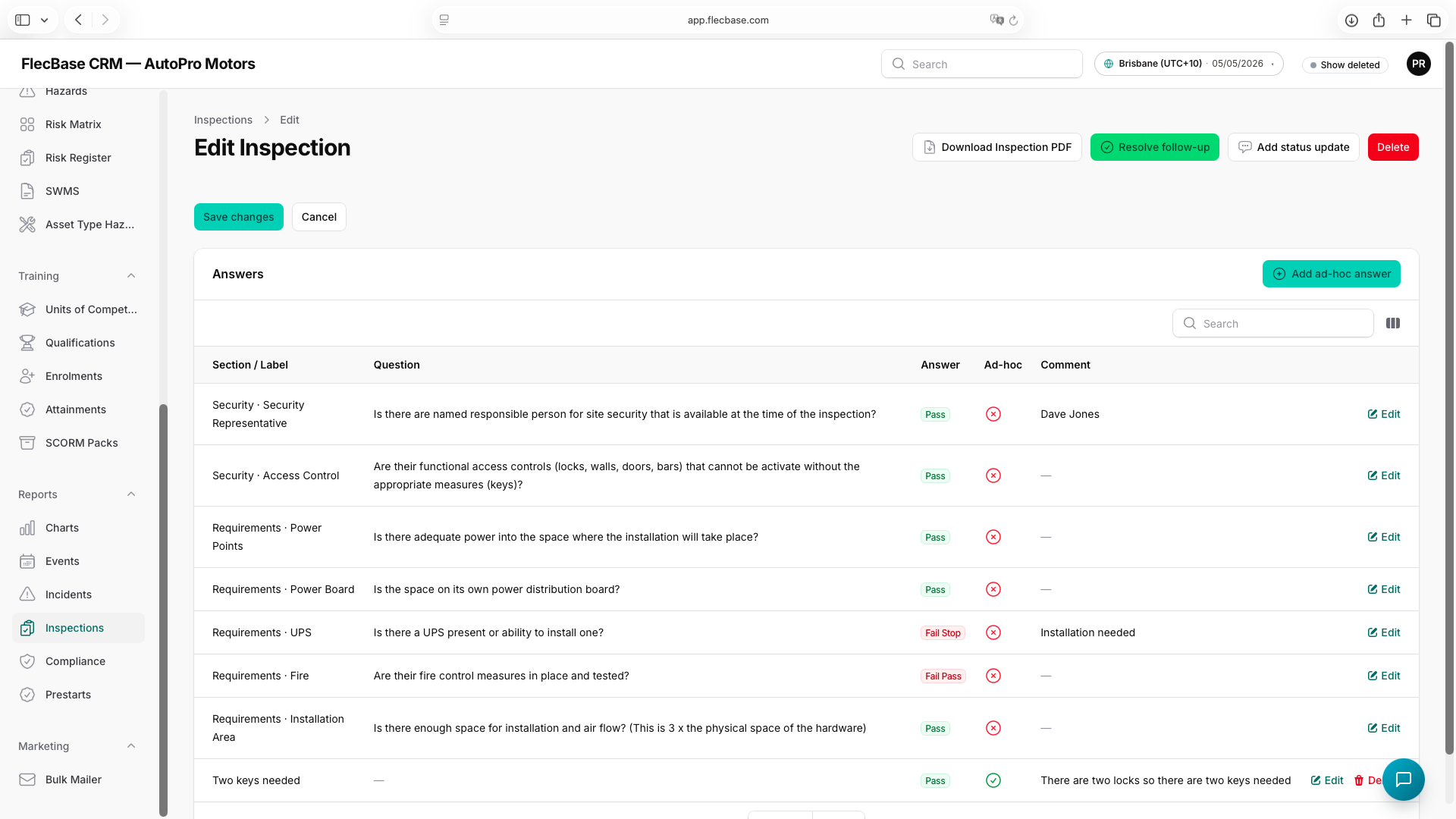
inspections_2.png